Are you staring at the October 2025 deadline wondering where to start? With Microsoft ending Windows 10 support on October 14, 2025, Australian businesses face a migration that can’t be rushed or improvised. At Catalyst Computers, we’ve guided dozens of Sydney businesses through this exact process, and we know that a structured approach makes all the difference.
The good news? With proper planning, your Windows 11 upgrade can happen without disrupting your operations. Here’s the complete checklist we use with our clients to ensure nothing gets missed.
Why You Need a Proper Checklist
Jumping into a Windows 11 upgrade without preparation leads to problems. We’ve seen businesses lose data, discover critical applications won’t run, or face extended downtime because they skipped essential steps.
The Risks of Not Upgrading
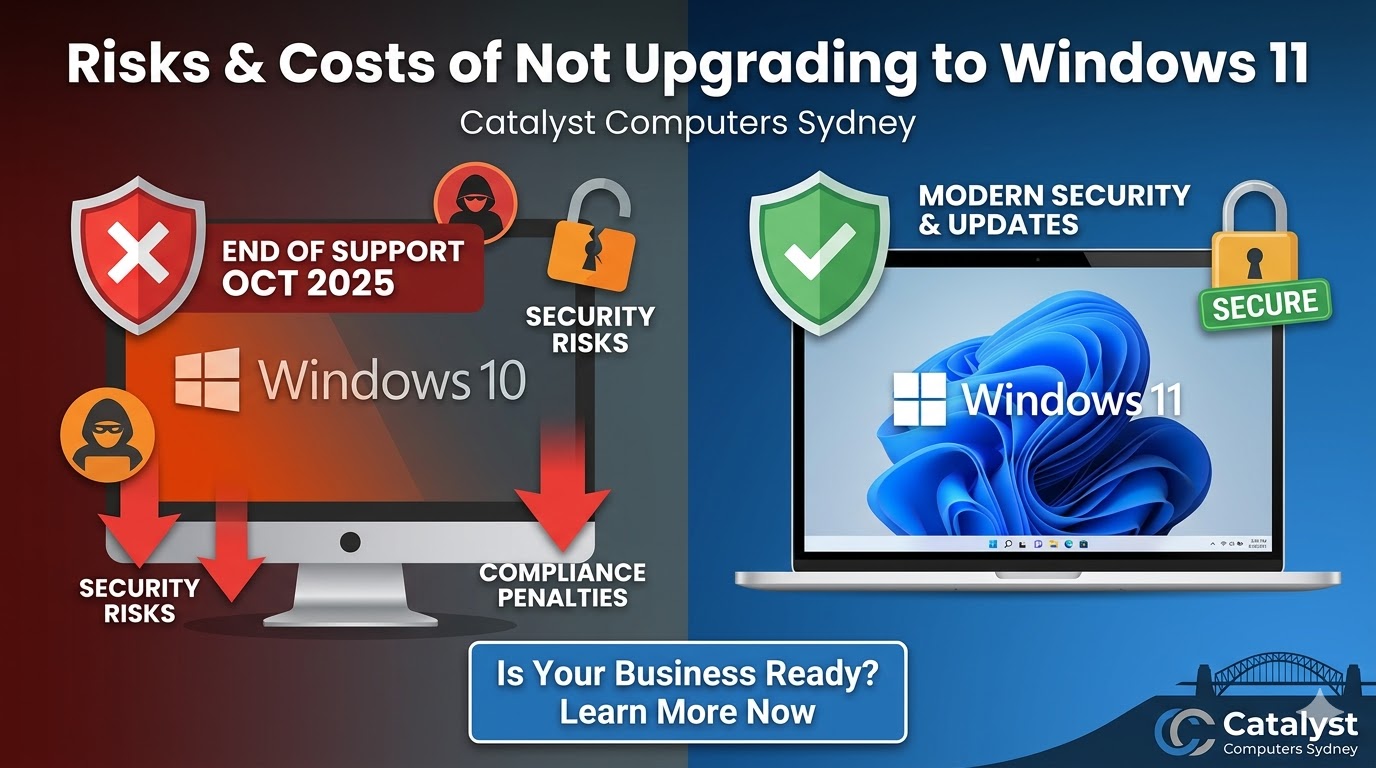
After October 14, 2025, Windows 10 receives no more security patches. Every new vulnerability becomes a permanent hole in your defences. Beyond security, you also risk compliance violations under the Australian Privacy Principles, potential cyber insurance termination, and reduced compatibility with new software.
The Risks of Poor Planning
Even with the best intentions, unplanned upgrades cause headaches. Applications stop working, data gets lost during transfer, and your team sits idle waiting for IT to sort things out. A checklist prevents these scenarios.
Phase 1: Assessment and Planning
Before touching a single computer, you need to understand what you’re working with. This phase typically takes one to two weeks.
Audit Your Devices
Start by listing every Windows 10 device in your organisation. Then categorise them into three groups based on upgrade readiness.
Upgrade-ready devices meet all Windows 11 requirements and can be upgraded directly. Devices needing enhancements require RAM upgrades, storage expansion, or firmware updates before they qualify. Devices requiring replacement cannot meet requirements even with upgrades and need to be replaced entirely.
Check Hardware Requirements
Windows 11 has stricter hardware requirements than Windows 10. Each device needs a TPM 2.0 chip, UEFI firmware with Secure Boot capability, and a compatible processor. For business use, we recommend at least an 11th generation Intel i5 processor, 16GB RAM, and a 256GB SSD.
Devices over five years old will likely need replacement. Factor hardware procurement into your timeline, as delivery currently takes two to three weeks.
Test Application Compatibility
This step catches most upgrade problems before they happen. Identify your critical business applications and test each one for Windows 11 compatibility.
Use Microsoft’s Compatibility Appraiser to identify potential issues. Check third-party integrations including security software, accounting packages, and industry-specific tools. Confirm your software vendors have active support agreements in case issues arise during migration.
Set Your Timeline and Budget
Windows 11 migrations take an average of eight weeks, primarily due to IT resourcing constraints. Factor in time for hardware procurement, testing, phased deployment, and post-upgrade support.
Get executive approval early and identify your project team. This includes internal IT staff, any external support partners, and key stakeholders from each department.
Phase 2: Backup and Data Protection
Data protection isn’t optional. One corrupted backup can turn a routine upgrade into a disaster.
Implement the 3-2-1 Backup Rule
Create three copies of your data on two different storage types, with one copy stored offsite or in the cloud. This approach protects against hardware failure, ransomware, and physical disasters.
Verify Your Backups
Test your restoration procedures before starting any upgrades. A backup is only useful if you can actually restore from it. Document verified restore points for each device.
Phase 3: Pre-Deployment Preparation
With assessment complete and data protected, prepare for the actual deployment.
Gather User Information
Collect and confirm all user accounts with their roles and access levels. Review licensing eligibility for free upgrades versus new licence purchases.
Communicate the Schedule
Tell your team what’s happening and when. Set clear expectations about any downtime, explain what they’ll experience on upgrade day, and prepare training materials for Windows 11’s new features.
Document Everything
Create a detailed project plan with clear accountability, dependencies, and milestones. This documentation becomes invaluable when issues arise.
Phase 4: Deployment
The actual upgrade happens in phases to minimise risk and catch problems early.
Start With a Pilot Group
Upgrade a small test group first, typically IT staff or tech-savvy employees. Monitor their systems for 48 to 72 hours, tracking performance, application stability, and any issues that arise.
Expand to Non-Critical Systems
Once the pilot succeeds, upgrade systems that aren’t essential to daily operations. This expands your testing while limiting business impact if problems occur.
Complete Full Deployment
With confidence from earlier phases, upgrade remaining systems including business-critical workstations. Schedule these upgrades outside business hours to avoid disruption.
Phase 5: Post-Upgrade Tasks
The upgrade isn’t complete when Windows 11 finishes installing. Post-deployment work ensures everything runs properly.
Verify Everything Works
Confirm each system boots correctly, data transferred completely, and network connections function. Test application functionality, shared drives, and any integrations your business relies on.
Configure Security Settings
Set up Windows 11’s security features including BitLocker encryption, firewall settings, and endpoint detection. Implement Multi-Factor Authentication and review compliance requirements against the Essential Eight framework.
Support Your Team
Provide helpdesk support and expect increased queries initially. Windows 11’s interface differs from Windows 10, so even simple tasks might confuse users at first. Conduct brief training sessions on new features like Snap Layouts and the redesigned Start menu.
Monitor systems for 30 to 90 days to catch any stability issues that emerge over time.
Phase 6: Decommissioning
Don’t forget about your old Windows 10 devices.
Secure Device Disposal
Wipe all data from retired devices using certified data destruction methods. Dispose of hardware responsibly through e-waste recycling. Update your IT inventory and documentation to reflect current assets.
How Catalyst Computers Can Help
Planning and executing a Windows 11 upgrade takes time your team might not have. At Catalyst Computers, we handle the entire process so you can focus on running your business.
- We’re genuinely local. Our technicians live and work in Sydney. When you call, you speak to someone who understands Australian business requirements, not an offshore call centre.
- Fixed-price projects. You’ll know exactly what the upgrade costs before we start. No hourly billing surprises, no hidden fees.
- Zero-downtime upgrades. We schedule work outside business hours and provide immediate support if issues arise. Your team starts Monday morning on Windows 11 without missing a beat.
- 30-day support included. Every upgrade project includes 30 days of post-migration support at no extra cost. If your team has questions or encounters issues, we’re here to help.
- No contracts required. You pay for the upgrade project. That’s it. No monthly retainers or lock-in agreements.
Ready to Start Your Windows 11 Upgrade?
With the October 2025 deadline approaching and migrations taking eight weeks on average, now is the time to begin planning. IT providers are booking up quickly, and hardware supply chains add additional lead time.
At Catalyst Computers, we’ll assess your current devices, identify compatibility issues, and provide a fixed-price quote for your complete Windows 11 upgrade. No jargon, no pressure, just straight answers about what your business needs.
Contact Catalyst Computers today:
- Phone: 02 9160 0335
- Email: info@catalystcomputers.com.au
- Website: catalystcomputers.com.au
Book your free Windows 11 readiness assessment today. We’ll review your current setup, check every device for compatibility, and show you exactly how to upgrade without disrupting your business.
Don’t let poor planning turn a routine upgrade into a crisis. The best time to start was last month. The second-best time is now.